docker部署netcore项目 nginx负载均衡
前言:
本文主要内容是docker部署netcore应用以及docker运行nginx实现负载均衡。到目前为止感觉微软在跨平台的方面虽然有较大的进步,但是和linux比还是有一定的差距,在学习docker,nginx以及Netcore 过程中网上能查找参考的资料还是比较有限的,所以在此记录下遇到的问题以及踩到的各种坑,希望避免再次走弯路。
一.新建NET Core应用程序;
1.添加Docker支持,由于到目前为止,nginx还不支持windows容器,为了便于本机测试所以选用Linux容器,如下图:

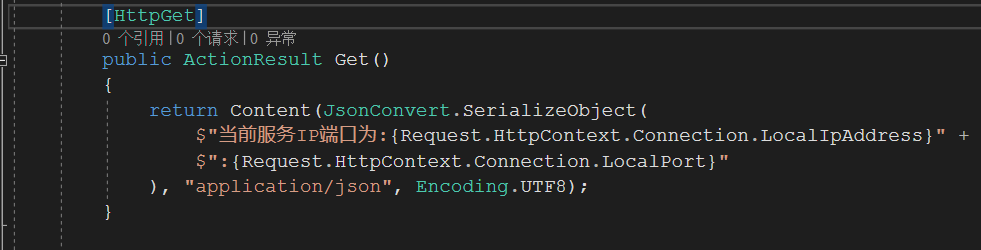
2.输出请求处理,显示当前请求IP以及端口号:
3.编辑Dockerfile文件
dockerfile文件指令说明:
FROM -指定基础镜像(FROM是必备的指令,并且必须为第一条指令)
WORKDIR-配置工作目录
EXPOSE-声明镜像内服务监听的端口
COPY-复制内容到镜像
ENTRYPOINT-启动镜像的默认人口命令
ENV -设置环境变量
编辑后的dockerfile文件如下:
FROM microsoft/dotnet:2.2-aspnetcore-runtime AS baseWORKDIR /appEXPOSE 8005EXPOSE 443ENV ASPNETCORE_URLS http://+:8005COPY . .ENTRYPOINT ["dotnet", "DockerDemo.dll"]
右键属性,选择“如果较新则复制”
4.Docker发布,
Release生成解决方案,定位到reliease文件夹,执行"docker build”指令,如下图:
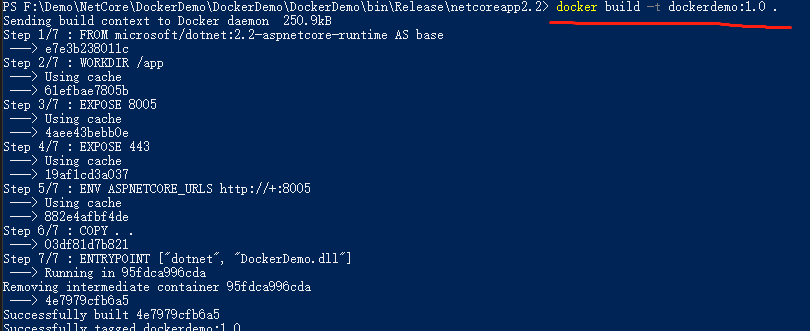
在执行过程中,有可能会碰到“no such host”问题,重试几次或者设置镜像代理即可
ps: 镜像版本后面有个空格+“ .”需留意 注意最后有个点,代表使用当前路径的 Dockerfile 进行构建
运行 docker images查看当前镜像:
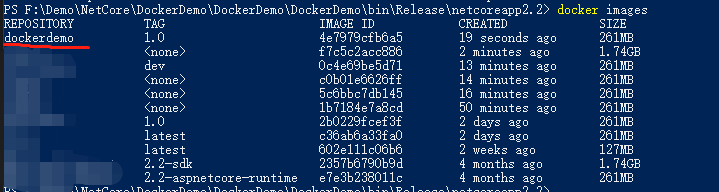
可以看到已经成功构建。
5.构建dockerdemo容器:
执行"docker run“指令,构建该镜像的实例docker run -d -t -p 8006:8005 --name dockerdemo8006 dockerdemo:1.0,可以看到,容器已经构建成功:

浏览器输入即可看到下列结果

同理构建该镜像的其他容器,分别为8007,8008;至此docker构建netcore镜像已经完成,我们可以在Kitematic查看已经构建的容器;

二.Docker构建nginx容器实现负载均衡
1.执行“docker pull nginx“指令获取镜像,docker images 查看当前镜像;
2.构建nginx镜像容器
执行docker run -d -p 8003:80 --name dockernginxdemo nginx,其中-d表示后台运行,-p表示开放的端口,将80端口代理到宿主8003端口,这样访问ip:8003就可以访问nginx 80端口,--name表示容器名字,最后为镜像名:标签。
docker ps查看当前容器:

可以看出已经实例化镜像文件。在浏览器中输入localhost:8003出现如下界面则表示成功:

3.修改nginx配置文件:
该页面是镜像文件中自带的一个html文件,我们需要将我们自己nginx的配置文件复制替换容器自带的配置文件,进入容器中
docker exec -it dockernginxdemo/bin/bash cat /etc/nginx/nginx.conf
可以看到Nginx镜像自带的nginx配置文件信息
user nginx;worker_processes 1;error_log /var/log/nginx/error.log warn;pid /var/run/nginx.pid;events { worker_connections 1024;}http { include /etc/nginx/mime.types; default_type application/octet-stream; log_format main '$remote_addr - $remote_user [$time_local] "$request" ' '$status $body_bytes_sent "$http_referer" ' '"$http_user_agent" "$http_x_forwarded_for"'; access_log /var/log/nginx/access.log main; sendfile on; #tcp_nopush on; keepalive_timeout 65; #gzip on; include /etc/nginx/conf.d/*.conf;}可以看到这和nginx教程中的配置文件有一定的区别的,我自己在这儿踩了几个坑,nginx中的配置文件是作为一个整体的,而镜像中是默认包括两个文件:default.conf和nginx.conf文件,下图是nginx教程中的配置文件


#定义Nginx运行的用户和用户组#user nobody; #nginx进程数,建议设置为等于CPU总核心数。worker_processes 1; #全局错误日志定义类型,[ debug | info | notice | warn | error | crit ]#error_log logs/error.log;#error_log logs/error.log notice;#error_log logs/error.log info;#进程文件#pid logs/nginx.pid;#工作模式与连接数上限events { #单个进程最大连接数(最大连接数=连接数*进程数) worker_connections 1024;}#设定http服务器http { #文件扩展名与文件类型映射表 include mime.types; #默认文件类型 default_type application/octet-stream; #log_format main '$remote_addr - $remote_user [$time_local] "$request" ' # '$status $body_bytes_sent "$http_referer" ' # '"$http_user_agent" "$http_x_forwarded_for"'; #access_log logs/access.log main; #开启高效文件传输模式,sendfile指令指定nginx是否调用sendfile函数来输出文件,对于普通应用设为 on,如果用来进行下载等应用磁盘IO重负载应用,可设置为off,以平衡磁盘与网络I/O处理速度,降低系统的负载。注意:如果图片显示不正常把这个改 成off。 sendfile on; #防止网络阻塞 #tcp_nopush on; #长连接超时时间,单位是秒 #keepalive_timeout 0; keepalive_timeout 65; #开启gzip压缩输出 #gzip on; #虚拟主机的配置 server { #监听端口 listen 80; #域名可以有多个,用空格隔开 server_name localhost; #默认编码 #charset utf-8; #定义本虚拟主机的访问日志 #access_log logs/host.access.log main; location / { root html; index index.html index.htm; } #error_page 404 /404.html; # redirect server error pages to the static page /50x.html # error_page 500 502 503 504 /50x.html; location = /50x.html { root html; } # proxy the PHP scripts to Apache listening on 127.0.0.1:80 # #location ~ \.php$ { # proxy_pass http://127.0.0.1; #} # pass the PHP scripts to FastCGI server listening on 127.0.0.1:9000 # #location ~ \.php$ { # root html; # fastcgi_pass 127.0.0.1:9000; # fastcgi_index index.php; # fastcgi_param SCRIPT_FILENAME /scripts$fastcgi_script_name; # include fastcgi_params; #} # deny access to .htaccess files, if Apache's document root # concurs with nginx's one # #location ~ /\.ht { # deny all; #} } # another virtual host using mix of IP-, name-, and port-based configuration # #server { # listen 8000; # listen somename:8080; # server_name somename alias another.alias; # location / { # root html; # index index.html index.htm; # } #} # HTTPS server # #server { # listen 443 ssl; # server_name localhost; # ssl_certificate cert.pem; # ssl_certificate_key cert.key; # ssl_session_cache shared:SSL:1m; # ssl_session_timeout 5m; # ssl_ciphers HIGH:!aNULL:!MD5; # ssl_prefer_server_ciphers on; # location / { # root html; # index index.html index.htm; # } #}}View Code
如果直接将conf文件替换镜像中的nginx文件的话,会出现“directive is not allowed here in /etc/nginx/conf.d/nginx.conf”这样的问题,原因是在default.conf配置文件中,已经存在"server”节点,我们可以执行如下指令
docker cp f3d9ee01637a:/etc/nginx/conf.d/default.conf E:/ngingconf/default.conf
将conf.d/default.conf文件复制到 E:/ngingconf/default.conf文件中,default.conf文件如下:
server { listen 80; server_name localhost; #charset koi8-r; #access_log /var/log/nginx/host.access.log main; location / { root /usr/share/nginx/html; index index.html index.htm; } #error_page 404 /404.html; # redirect server error pages to the static page /50x.html # error_page 500 502 503 504 /50x.html; location = /50x.html { root /usr/share/nginx/html; } # proxy the PHP scripts to Apache listening on 127.0.0.1:80 # #location ~ \.php$ { # proxy_pass http://127.0.0.1; #} # pass the PHP scripts to FastCGI server listening on 127.0.0.1:9000 # #location ~ \.php$ { # root html; # fastcgi_pass 127.0.0.1:9000; # fastcgi_index index.php; # fastcgi_param SCRIPT_FILENAME /scripts$fastcgi_script_name; # include fastcgi_params; #} # deny access to .htaccess files, if Apache's document root # concurs with nginx's one # #location ~ /\.ht { # deny all; #}}View Code可以看到,在default文件中已经存在server节点,所以不能直接复制自定义的nginx.conf文件到容器的nginx.conf文件中。有两种解决方案,第一分别修改nginx.conf和default.conf文件;第二,将容器中的default.conf文件内容删除,然后再复制自定义的conf文件覆盖掉镜像中nginx.conf的配置文件。这里,我们采用第一种方法,修改镜像中Nginx.conf以及default.conf的局部节点;
首先,执行
docker cp f3d9ee01637a:/etc/nginx/nginx.conf E:/ngingconf/nginx.conf
指令,将镜像文件中的nginx.conf文件复制到本地,打开E:/ngingconf/nginx.conf,编辑配置文件如下:
1 user nginx; 2 worker_processes 1; 3 4 error_log /var/log/nginx/error.log warn; 5 pid /var/run/nginx.pid; 6 7 8 events { 9 worker_connections 1024;10 }11 12 13 http {14 15 #集群站点配置16 upstream nginxtest.com{17 #server 127.0.0.1:8887 weight=1;#服务器配置 WEIGHT是权重的意思,权重越大,分配的概率越大。 18 server 127.0.0.1:8006 weight=1;19 server 127.0.0.1:8007 weight=1;20 server 127.0.0.1:8008 weight=1;21 }22 23 24 25 include /etc/nginx/mime.types;26 default_type application/octet-stream;27 28 log_format main '$remote_addr - $remote_user [$time_local] "$request" '29 '$status $body_bytes_sent "$http_referer" '30 '"$http_user_agent" "$http_x_forwarded_for"';31 32 access_log /var/log/nginx/access.log main;33 34 sendfile on;35 #tcp_nopush on;36 37 keepalive_timeout 65;38 39 #gzip on;40 41 include /etc/nginx/conf.d/*.conf;42 }View Codenginx.conf文件中,我们添加了

节点指令,配置服务集群,对应之前的三个netcore应用的端口8006,8007,8008。然后执行
docker cp E:/ngingconf/nginx.conf f3d9ee01637a:/etc/nginx/nginx.conf
执行,将本地修改后的nginx.conf文件拷贝到镜像文件中;同理,执行
docker cp f3d9ee01637a:/etc/nginx/conf.d/default.conf E:/ngingconf/default.conf
将镜像文件中的default.conf文件复制到本地,打开E:/ngingconf/default.conf,编辑配置文件如下:
1 server { 2 listen 80; 3 server_name localhost; 4 5 #charset koi8-r; 6 #access_log /var/log/nginx/host.access.log main; 7 8 #缓存文件路由 9 location ~ .*(\.(js|css|jpg|svg)).* {10 11 proxy_pass http://nginxtest.com;12 proxy_cache_valid 200;13 expires 3d;14 }15 #集群站点路由16 location / {17 18 proxy_pass http://nginxtest.com; #对应upstream后面的名称加上http19 proxy_http_version 1.1;20 proxy_redirect default;21 22 proxy_set_header Upgrade $http_upgrade; 23 proxy_set_header Connection keep-alive;24 proxy_set_header Host $host;25 proxy_cache_bypass $http_upgrade;26 27 proxy_set_header X-Forwarded-For $proxy_add_x_forwarded_for;28 }29 }View Code注意 集群站点中“proxy_pass”后面参数名称需要和nginf.conf文件中集群名称一致。随后执行cp指令覆盖镜像文件即可;
4.测试
至此docker 部署nginx反向代理已经完成,预期效果是在网站中输入localhost:8003就会访问不同的端口号实现负载均衡实际效果运行却是。。。

不甘心,有试了几遍,还是这个结果 后来查看了下Kitematic,日志果然有其他问题:

大概就是无法连接到集群里的服务器,推测了下应该是容器间的通信问题,于是验证了下,用IIS而不是容器发布了应用然后用docker部署nginx负载均衡,其他步骤一样,果然可以直接访问而不会出现该问题,于是开始着手解决这个问题
